Teacher Guide
Your first 15 minutes as an educator
Turn your own lectures, slides, and readings into an assigned, gradable study loop for your class.
The 15-minute path
- Sign up and, if this is a class, make sure you are on a paid plan — creating a class (an Echosaw organization) requires a subscription.
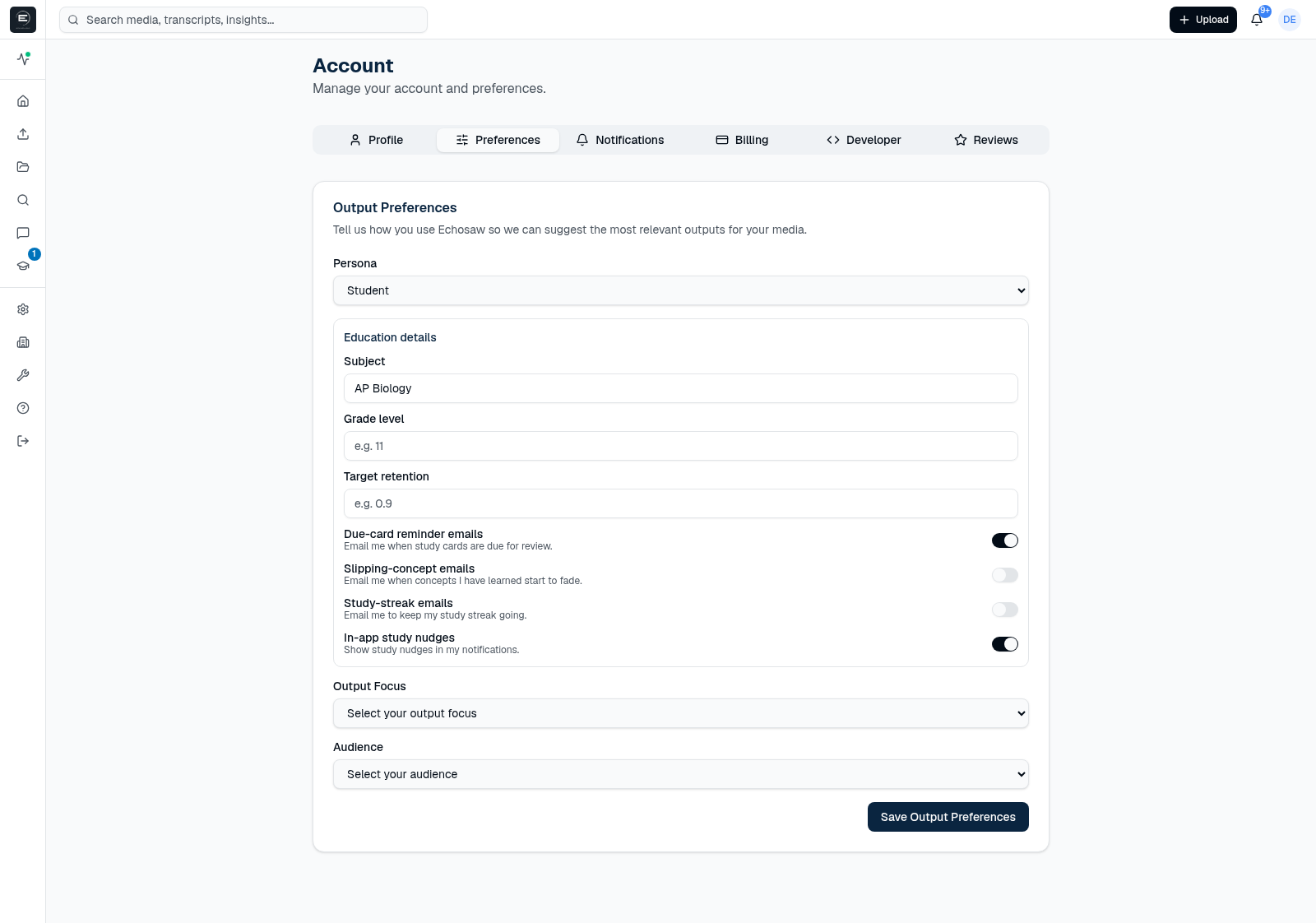
- Set your Persona to Educator. Open Account → Output Preferences → Persona and choose Educator. This is the step people miss: the teaching tools are gated on your Persona.
- Find where Teach appears. Once your Persona is Educator and you are an owner/admin of the class, a Teachitem appears in the left sidebar and opens the Study Desk. If you don't see it, re-check the Persona step — no Persona means no education tools show at all.
- Analyze one piece of material — a lecture recording, a photo of the board, or a linked reading.
- Create & assign a study packetfrom that media's report. Your class now has its first assignment.
Setting your Persona
Persona lives in Account → Output Preferences. Educator unlocks the class-facing tools; Student unlocks the personal Study Desk. It can be changed at any time.
Your classroom, mapped to Echosaw
If you already run a class, you already know these moves. Here is the same workflow in Echosaw's words:
| In the classroom | In Echosaw |
|---|---|
| Assign homework / reading | Create and assign a study packet (one packet can span several sources to cover a whole unit) |
| “Who's keeping up?” | Roster mastery grid — each student's per-concept status (Not started / Due / Overdue / On track) and concepts started |
| Grade it | Recall grading; typed answers show “pending teacher review” (never a zero) until you grade them, and you can override the AI grade |
| Pop quiz (formative) | Quiz — low-stakes practice; not the score of record |
| Unit test (summative) | Test — the score of record; optionally closed-book, timed, attempt-limited, with a pass threshold and readiness gate |
| “The class bombed chapter 3 — reteach it” | Reteach insights + class-weak concepts; each concept links back to the exact moment in the source media |
| Cumulative / spaced review | Daily Review — spaced repetition (FSRS) brings each concept back right before it is forgotten |
| Enter grades in your gradebook | Export your class's Test attempts (the score of record) as CSV or JSON |
Recipe — assign your first packet
- Analyze the material and open its report when it finishes.
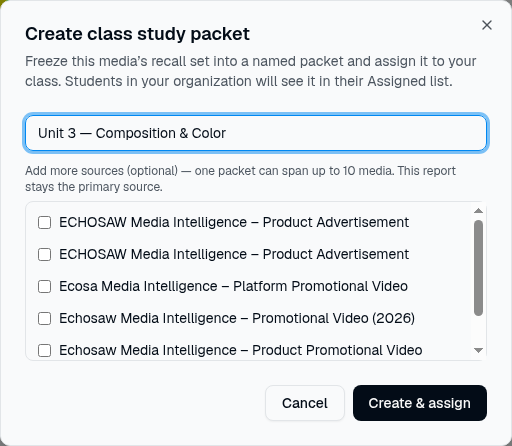
- In the report, choose Create class study packet.
- Give it a title. To cover a whole unit, add more source media so one packet spans the lecture, the slide, and the reading.
- Click Create & assign. The packet is frozen — students see exactly what you approved — and it appears in every class member's Assigned list.
Recipe — turn a packet into a graded test
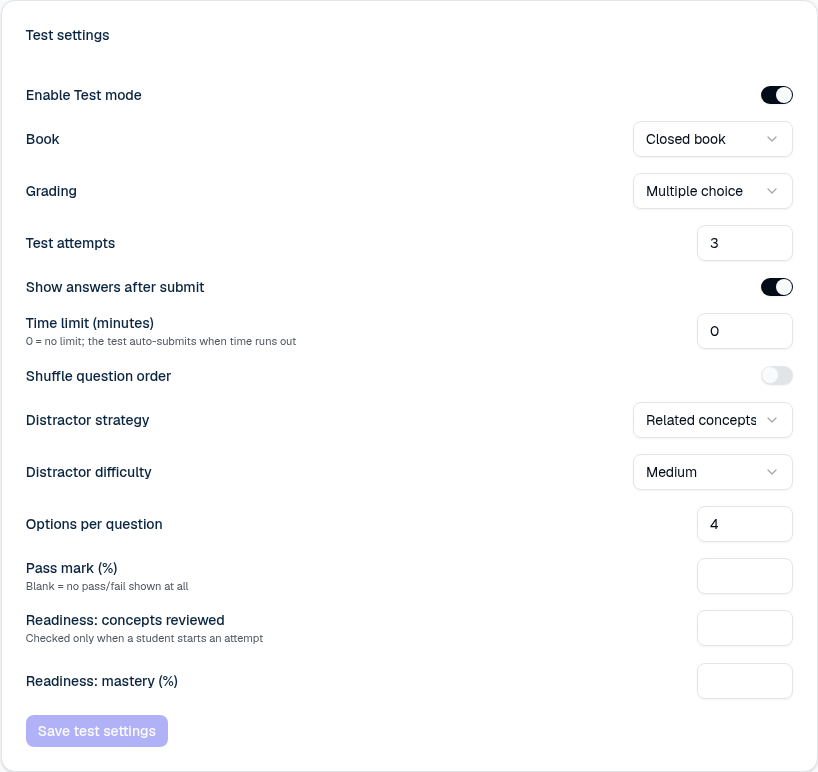
- Open the packet and turn Test on (it is off by default — students never see a Test until you enable it).
- Choose open or closed book, and the grading mode: multiple-choice, typed (free-response graded by AI against your answer, and you can override), or self.
- Optionally set an attempt limit, a server-enforced time box, a pass threshold, and a readiness gate that asks students to review first.
- Quiz stays available as formative practice; Test is the score of record and is kept out of the spaced-repetition schedule.
Recipe — see who's struggling and reteach
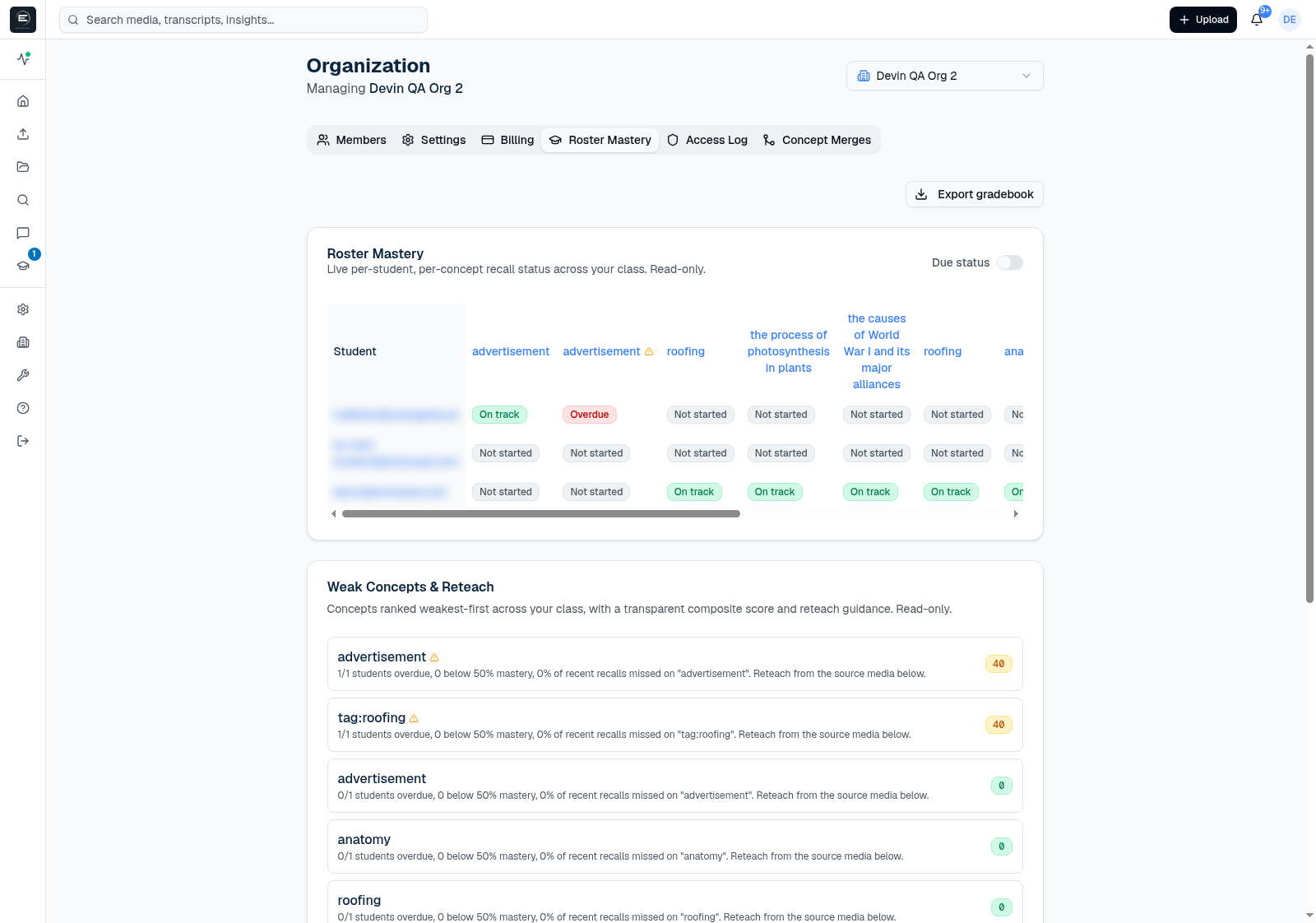
- Open your class and go to the Roster Mastery tab.
- Read the grid: toggle Due status on or off, and see each student's per-concept status. A concept flagged as class-weak carries a warning marker in the Weak Concepts & Reteach panel below.
- Each concept links back to the exact moment in the source media, so you can reteach from where it was first taught.
Recipe — export grades
- From your class's Roster Mastery tab, choose Export gradebook.
- Pick CSV or JSON. The export contains your class's Test attempts — the score of record — and stays scoped to your own class; it never reaches another organization's data.
- Import the file into your own gradebook.
Keep going
The Student Guide shows what your students see. For plans and what running a class includes, see Pricing, and how student data is handled in the Education Data Notice.